

Install the application
Install your organization's site as an application on your phone, enable push notifications and choose the interface language.
Install the application on your phone / tablet
Your organization's application is installed directly from the browser, with the organization's name and logo on your home screen. We do not offer an application on Google's Play Store or Apple's App Store.
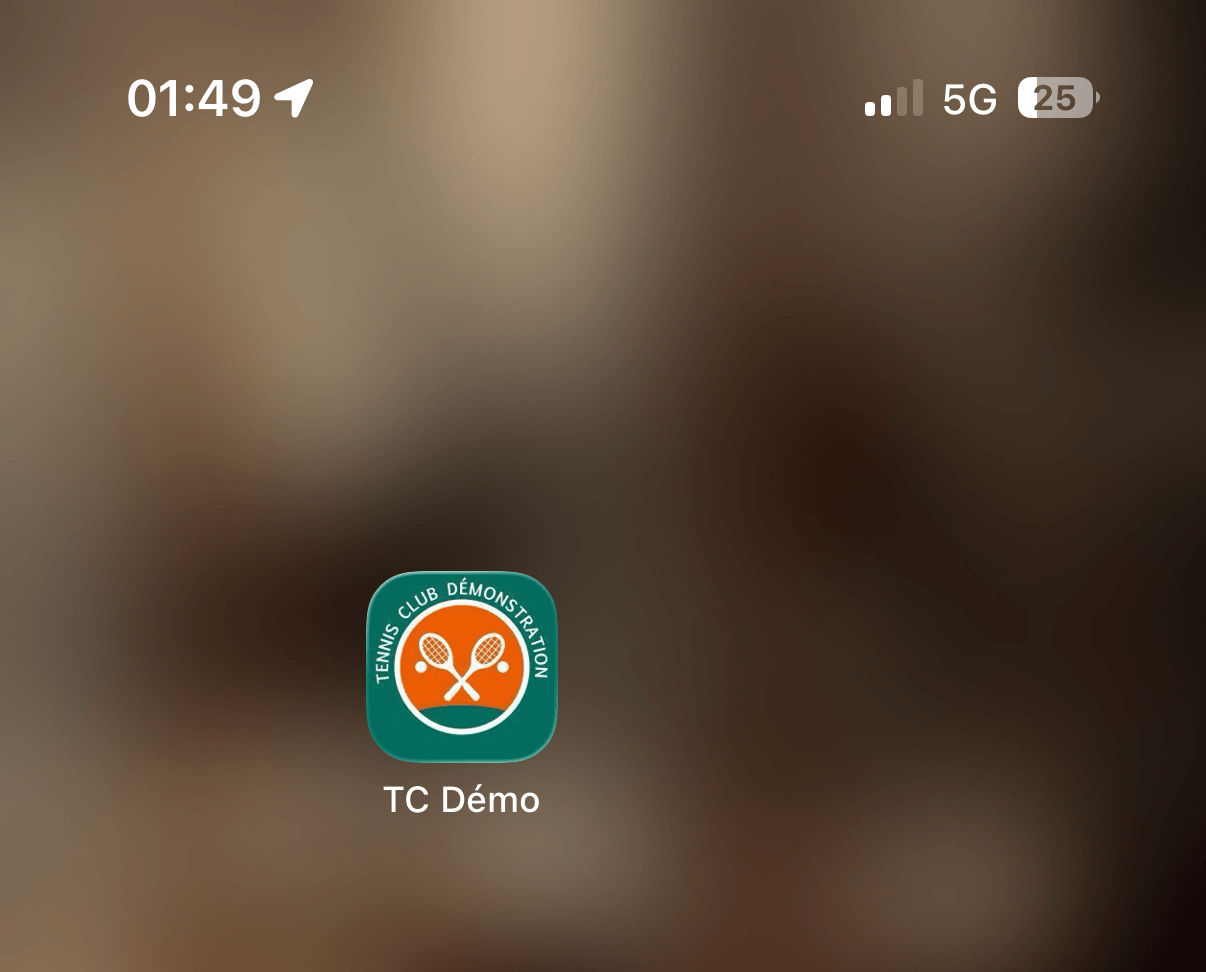
- Open your organization's site from your phone's browser.
- An installation banner appears at the top or bottom of the screen: tap INSTALL.
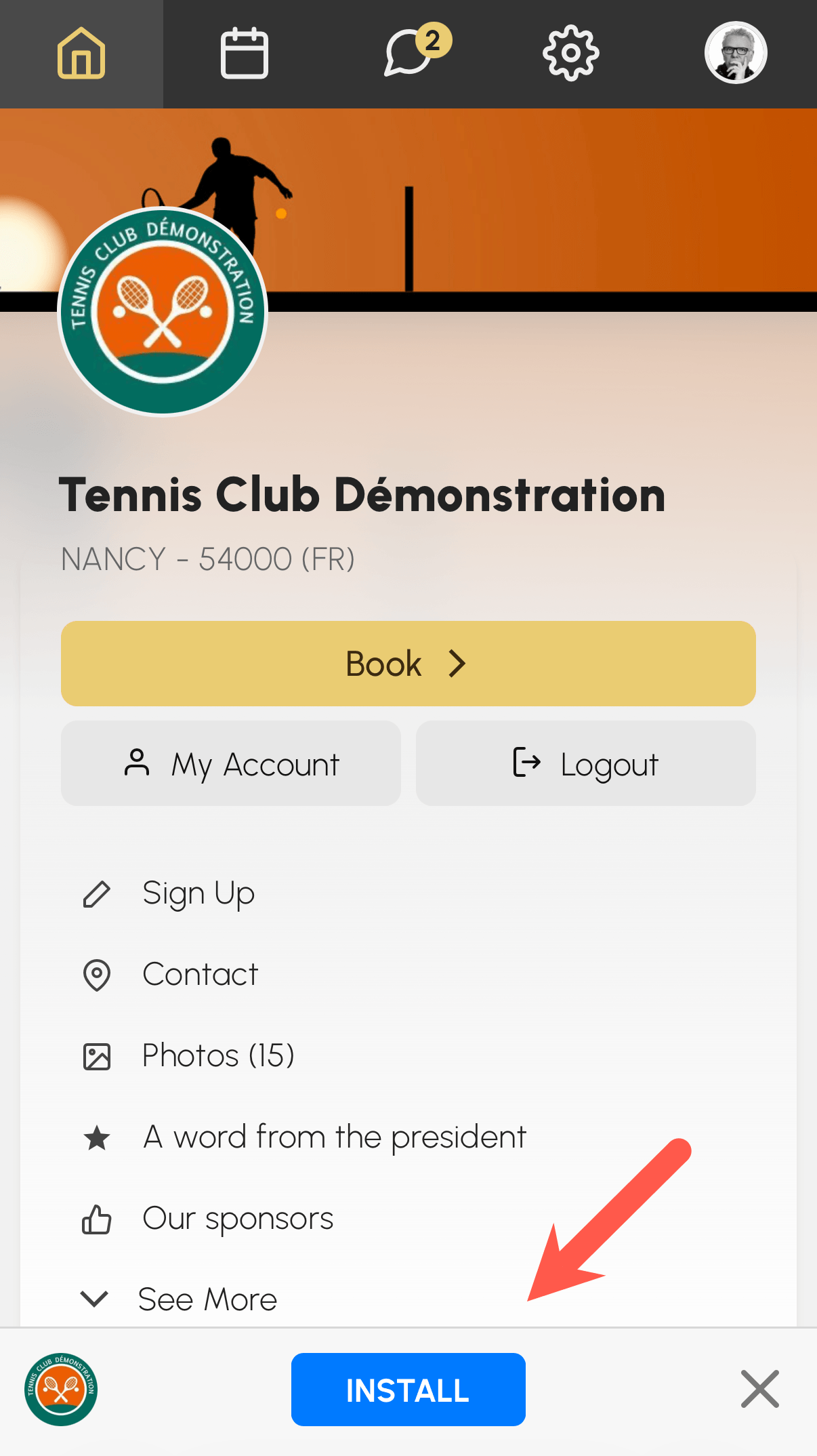
On iPhone and iPad (Safari), follow the instruction displayed: tap the share icon, then tap "Add to Home Screen".
Once installed, the application opens in full screen like any other application on your phone, and you will be able to enable push notifications.
Enable push notifications
Push notifications appear on your device's lock screen, even when the application is closed.
- Go to My Account›Notifications, Push tab.
- Follow the Enable push notifications on this device section.
- Allow notifications when your browser asks you to.
- Then choose the events that trigger a notification (confirmation, booking reminder, messages, etc.).
If notifications are blocked, allow them in your browser settings, then start over.