

Finding Your Way Around the Calendars
Choose the view that suits you best to find a time slot: all courts for a single day, or a single court over several days.
Choosing the view: by day or by week
The booking menu offers two complementary views:
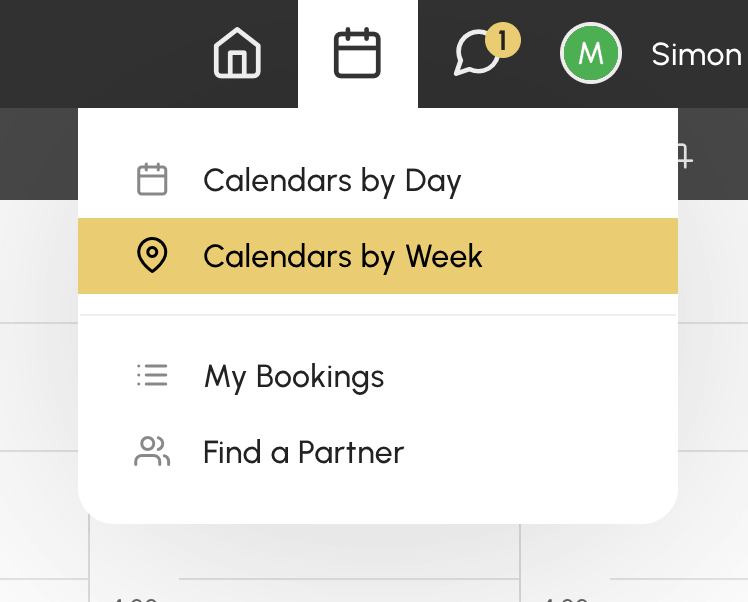
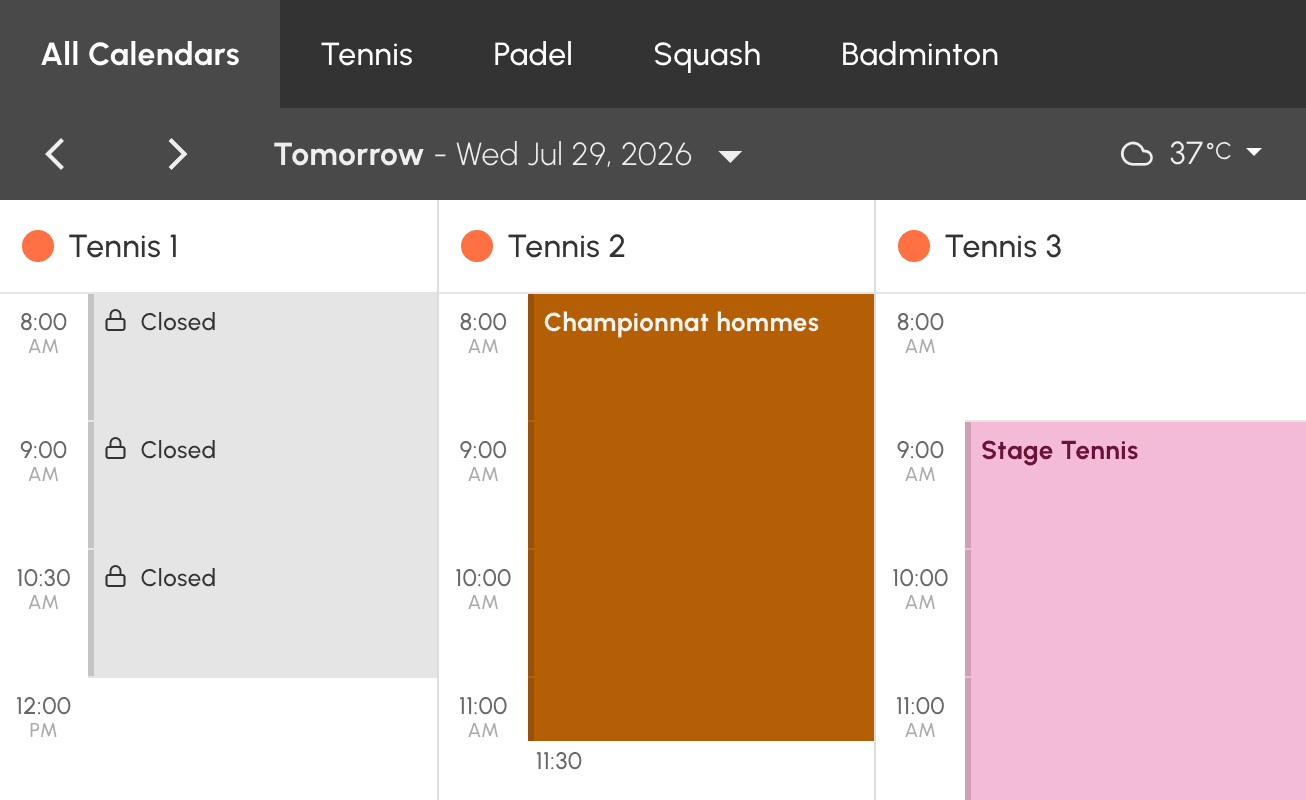
- Calendars by Day: all the organization's calendars side by side, for a single day. Ideal for comparing court availability on a given date. If your organization has arranged its calendars into groups (by activity or by site, for example), tabs appear above the day view. The All Calendars tab displays them all.
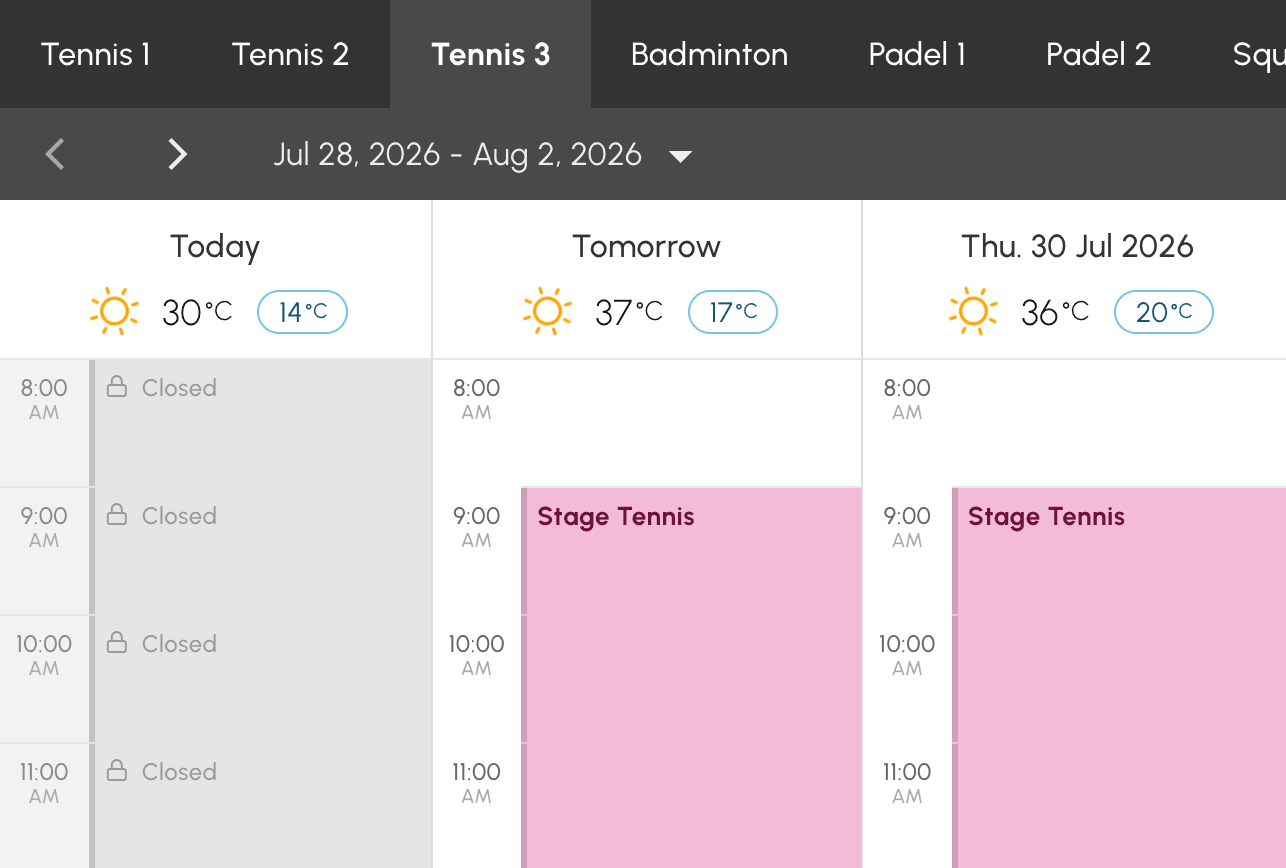
- Calendars by Week: a single calendar displayed over several days. Ideal for finding the next free time slot on your favourite court.
Navigating by date
- Use the arrows to move to the next or previous day.
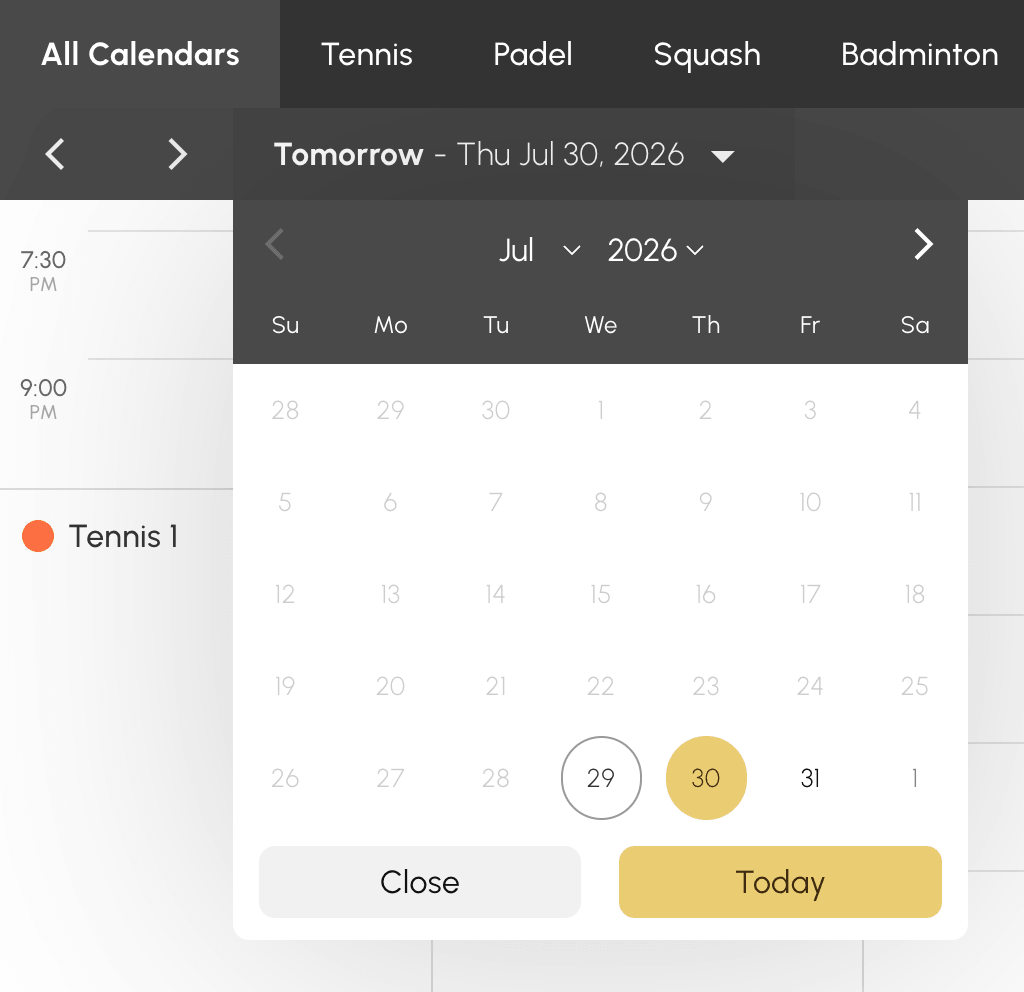
- Click the displayed date to open the date picker.
- The Today button takes you back to today's date.
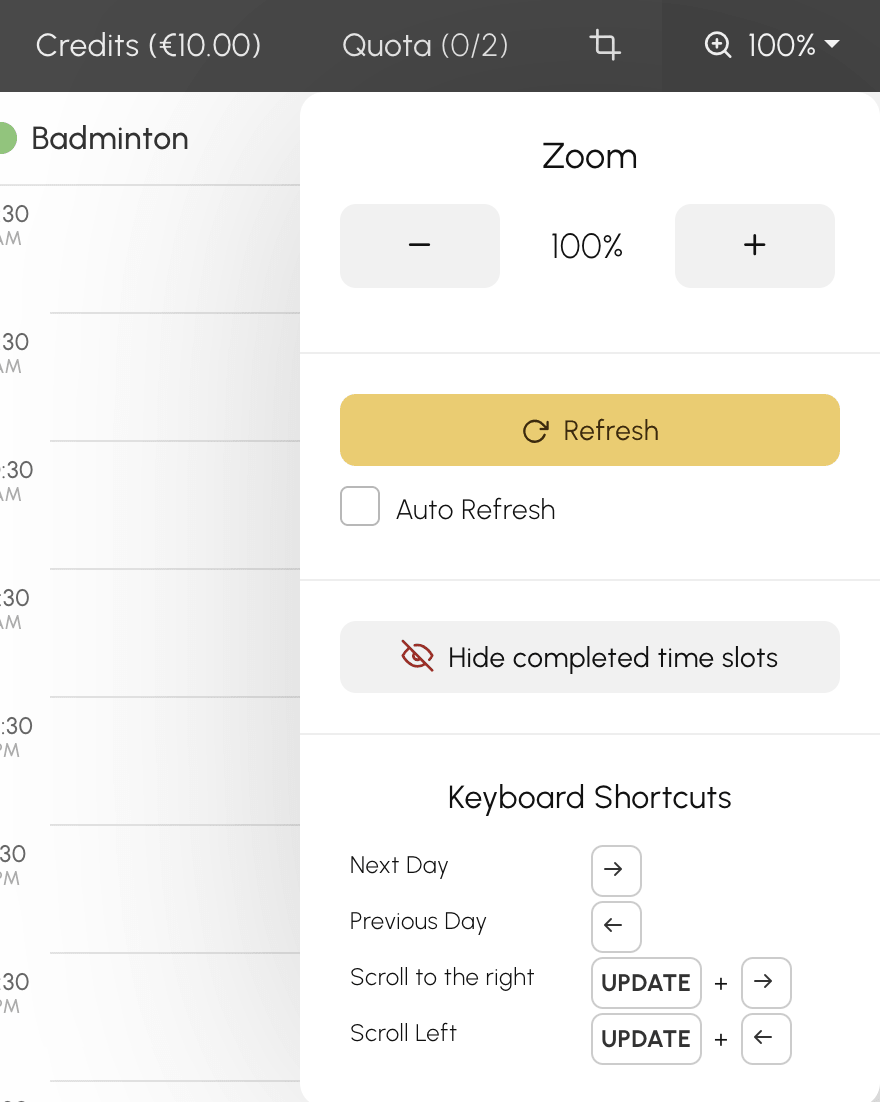
On a computer, keyboard shortcuts speed up navigation: the left and right arrows change the day, and combined with the SHIFT key they scroll through the calendars. The full list is shown in the zoom menu.
The number of days visible in advance depends on your subscription: beyond that, dates cannot be selected in the date picker.
Tracking your quota and your credits
Depending on your organization's configuration, the calendar toolbar displays:
- a Quota button with a counter: the number of current bookings compared with the maximum allowed. Click it to see the details. At the end of a booked time slot, the quota unit is released and you can book again.
- a Credits button with your balance: click it to view your booking credits and, if the organization has enabled this, to buy more.
Adjusting the display
The zoom menu in the toolbar lets you:
- Increase or reduce the size of the time slots with Zoom, then return to the standard size with Reset Zoom.
- Show or hide the day's past time slots with Display completed time slots and Hide completed time slots.
Creating a shortcut that always opens on today
Have you added the calendars to your bookmarks, or created a shortcut on your phone's home screen, and it always opens on an old date?
The calendar address remembers the day you are viewing, and it does so in two different ways depending on how you got there:
- with the arrows and the Today button, it stores an offset from today's date (today, tomorrow, yesterday, etc.). It therefore follows the calendar: a bookmark saved at that moment will always remain valid;
- with the date picker, it stores the exact date you chose. A bookmark saved at that moment will reopen that particular day indefinitely, and that day will move further into the past as the weeks go by.
To fix a shortcut that opens on an old date:
- Open the calendars.
- Click the date, then click Today: the address then stops pointing to a fixed date and points to the current day again.
- Save the bookmark, or recreate the shortcut on your home screen, from this page.