

Spartime: proteggi i tuoi accessi offline, con codici temporanei e QR Code
Spartime progetta soluzioni di accesso dal 2002 e sostituisce chiavi e badge con accessi temporanei personalizzati. La sua particolarità: i portieri FacilitAcces® funzionano senza connessione Internet sul sito attrezzato.
Presentazione
Spartime Innovations progetta e sviluppa soluzioni di accesso dal 2002, e oggi gestisce oltre un milione di accessi all'anno. La sua promessa: sostituire chiavi e badge con accessi temporanei, personalizzati e sicuri, senza che nessuno debba spostarsi per aprire una porta.
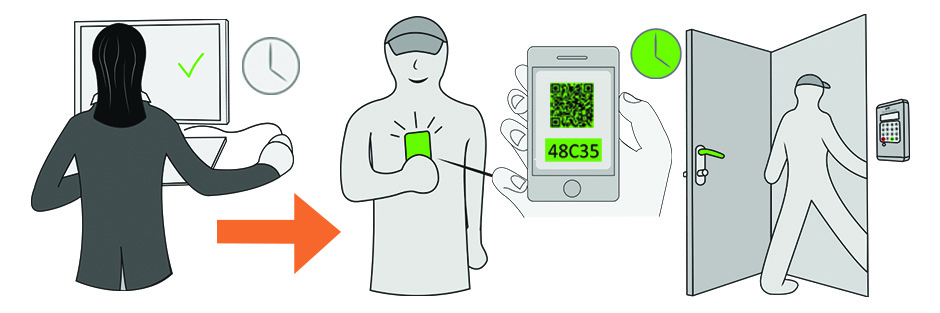
La sua particolarità risiede nell'autonomia dei suoi portieri FacilitAcces®. Mentre altre soluzioni necessitano di un collegamento permanente tra l'organizzazione e l'attrezzatura, Spartime calcola codici Persocode® validi su una determinata fascia oraria, e il portiere li verifica autonomamente. Non è necessaria alcuna connessione Internet sul sito attrezzato.
Cosa offre la soluzione quotidianamente
- Niente più mazzi di chiavi da gestire: il diritto di entrare è creato e rimosso automaticamente, semplicemente leggendo il codice.
- Un'installazione leggera, senza cablaggio di rete né configurazione Internet sul posto.
- Un'amministrazione completamente a distanza, dal vostro account dell'organizzazione e dalla piattaforma Spartime.
- Ogni prenotazione genera un codice diverso, e gli eventi sono memorizzati nel portiere, con possibilità di avvisi.
- I portieri compatibili accettano anche i QR code, pratici da trasmettere a un giocatore occasionale.
- La stessa installazione può controllare l'illuminazione e il riscaldamento del campo, oltre alla sua porta.
Aprire tutto il percorso del giocatore
Una stessa prenotazione può aprire più passaggi successivi: il cancello principale, la club house, gli spogliatoi, poi la porta del campo. Il giocatore compone un solo codice e segue il suo percorso fino al campo, senza dover ricordare una combinazione per ogni porta.
Ciascuno di questi accessi può essere regolato secondo due logiche, a scelta: una fascia oraria fissa — ad esempio dal lunedì al venerdì dalle 8 alle 22 — o un'apertura condizionata a una prenotazione in corso.
Un portiere può anche comandare un armadietto o un casellario, per mettere a disposizione materiale con lo stesso codice della prenotazione.
Utilizzi che vanno oltre l'organizzazione
Un campo isolato, un sito senza rete o un'installazione dove tirare un collegamento costerebbe caro: è la situazione in cui l'autonomia del portiere fa la differenza.
Lo stesso equipaggiamento si trova sia nelle palestre e nelle strutture associative che negli uffici, negli spazi di coworking, nei parcheggi o nelle attrezzature gestite da una collettività. È un argomento da considerare se la vostra struttura gestisce diversi tipi di spazi con un solo strumento.
Collegare il tuo account Spartime
- Aprite Amministrazione›Impostazioni›Controllo d'accesso & gestione, poi Più informazioni sulla scheda Spartime.
- Attivate il modulo.
- Inserite il vostro Identificativo Spartime e la vostra Password Spartime, poi cliccate su Connessione.
Il blocco Stato del gateway conferma il collegamento. Questi identificativi vi sono forniti da Spartime: non sono quelli del vostro account dell'organizzazione.
Dichiarare i vostri portieri
Un portiere corrisponde a un punto di accesso fisico: la porta di un campo, uno spogliatoio, un cancello d'ingresso. Da Configurazione dei portieri, cliccate su Nuovo portiere.
- Selezionate Portiere attivato.
- Assegnategli un Nome dell'accesso esplicito, ad esempio "Campo n°1 - Porta Sud" o "Spogliatoi".
- Scegliete il Calendario / Tipo di accesso: è ciò che collega il portiere alle prenotazioni di un determinato campo.
- Selezionate Con QR Code se il vostro portiere è compatibile.
- Inserite i parametri tecnici forniti da Spartime per questa attrezzatura.
Aprire più porte con un solo codice
Un giocatore che prenota un campo deve spesso attraversare più porte: il cancello, poi lo spogliatoio, poi il campo. Invece di dargli tre codici, designate un Portiere principale e collegatevi dei Portieri secondari (facoltativo).
Il codice fornito al momento della prenotazione apre quindi l'intero percorso.
Verificare prima dell'apertura al pubblico
La scheda Stato & codici di test di un portiere permette di controllare l'installazione prima di affidarla ai giocatori: generate un codice e verificate sul posto.
Testate le due famiglie di codici proposte dalla soluzione, i Codici ore basati su una fascia oraria e i Codici istantanei, prima di annunciare il nuovo funzionamento ai vostri utenti.
Controllare l'illuminazione e il riscaldamento
La stessa installazione può controllare l'illuminazione e il riscaldamento del campo, oltre alla sua porta.
L'attivazione è legata al codice di accesso: la luce si accende quando un giocatore iscritto alla prenotazione compone il suo codice. Nulla si attiva se nessuno arriva, evitando di illuminare un campo che un giocatore ha prenotato e poi dimenticato — sui time slots di fine giornata, è qui che si realizza la maggior parte del risparmio.
Contatto
Spartime Innovations studia ogni installazione prima di proporre una configurazione, e mette a disposizione un'assistenza online per i suoi portieri.
- Sito: spartime.com
- E-mail: contact@spartime.com
- Telefono: 02 51 11 02 40, o +33 2 51 11 02 40 dall'estero
- Indirizzo: Le Carré de Couëron, 5 rue des Vignerons, 44220 Couëron, Francia