



Encaisser avec SumUp
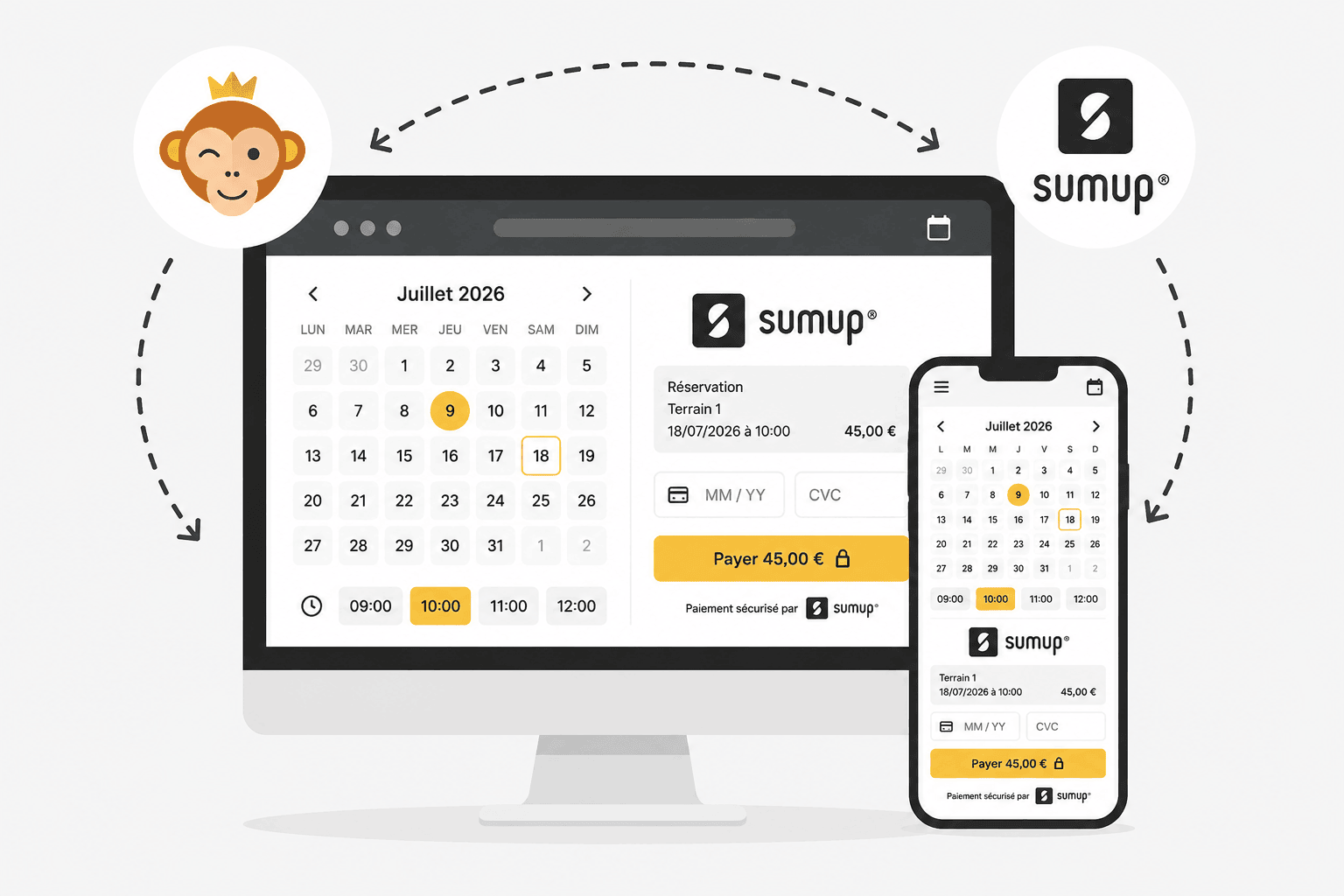
SumUp est une solution de paiement en ligne sans abonnement ni engagement, très répandue auprès des organisations et commerces de proximité. Vos utilisateurs règlent par carte bancaire, Apple Pay ou Google Pay sur une page de paiement sécurisée, et les fonds sont versés sur votre compte bancaire.
Prérequis
Un compte professionnel SumUp au nom de votre organisation (à créer si vous n'en avez pas encore un).
Connecter votre compte SumUp
- Rendez-vous dans Administration›Réglages›Facturation›Comptes de facturation, ouvrez le compte de facturation concerné et placez-vous dans l'onglet Paiements.
- Activez Paiements en ligne et sélectionnez SumUp dans la liste des passerelles. Si vous n'avez pas encore de compte, cliquez sur Créer un compte SumUp.
- Cliquez sur Enregistrer : le bouton de connexion apparaît alors sur la page.
- Cliquez sur Connecter mon compte SumUp. Un nouvel onglet s'ouvre vers une page SumUp sécurisée pour vous identifier et autoriser la connexion.
- De retour sur cette page, le compte apparaît comme connecté. Utilisez Tester la connexion pour vérifier que tout fonctionne.
Un lien Aide en ligne directement dans le formulaire détaille les tarifs et les étapes de connexion.

Comprendre le paiement côté utilisateur
Au moment de payer, l'utilisateur choisit Paiement en ligne puis est redirigé vers une page de paiement SumUp sécurisée. Carte bancaire, Apple Pay et Google Pay y sont proposés automatiquement selon son appareil, sans réglage supplémentaire de votre part.
Encaisser avec un terminal de paiement (TPE)
SumUp propose aussi des terminaux de paiement (TPE) physiques pour encaisser directement au comptoir, notamment depuis la Administration›Tableau de bord›Facturation›Caisse enregistreuse. Seuls les terminaux SumUp Solo peuvent être reliés : les autres modèles de la marque ne disposent pas de la fonction d'appairage à distance nécessaire.
- Rendez-vous dans Administration›Réglages›Facturation›Comptes de facturation, ouvrez le compte de facturation concerné et placez-vous dans l'onglet Paiements.
- Activez la rubrique Terminal de paiement (TPE).
- Cliquez sur Connecter mon compte SumUp pour relier vos terminaux à votre compte SumUp.
- Sur le terminal, connectez-vous à un réseau Wi-Fi, puis ouvrez ses réglages et rendez-vous dans le menu Connexions → API : un code d'appairage s'affiche à l'écran.
- Revenez sur votre compte de facturation, cliquez sur Ajouter un terminal, donnez-lui un nom (par exemple « Accueil ») et saisissez le code affiché sur le terminal.
Une fois un terminal appairé, choisissez le mode CB sur place au moment d'encaisser un paiement (caisse ou détail d'une commande) : la liste des terminaux disponibles apparaît, et l'encaissement est envoyé directement dessus.
Rembourser un paiement
Le remboursement se lance depuis Administration›Tableau de bord›Facturation›Factures & transactions : ouvrez la commande concernée et choisissez le remboursement, total ou partiel.
Deux choses se produisent alors : votre commande est mise à jour, et un appel est envoyé à SumUp pour rembourser réellement le payeur.
La mise à jour dépend du montant. Un remboursement total retire les livrables — crédits rendus, abonnement révoqué — et fait passer la commande en « remboursée ». Un remboursement partiel laisse les livrables en place et la commande payée : il n'enregistre qu'une écriture négative venant réduire le montant encaissé.
Rembourser depuis SumUp plutôt que d'ici
Vous pouvez tout aussi bien lancer le remboursement depuis le back-office SumUp. Il nous en informe alors automatiquement, et votre commande est mise à jour comme si vous étiez passé par BalleJaune : statut, avoir, livrables.
Les deux chemins mènent au même résultat. Prenez celui qui vous arrange — mais un seul des deux.
Si la passerelle ne répond pas
Un remboursement lancé depuis BalleJaune se joue en deux temps indépendants, et le second peut échouer alors que le premier a réussi : votre commande passe en remboursée, mais l'argent reste encaissé chez SumUp.
Un message vous le signale alors explicitement et vous invite à terminer l'opération depuis le back-office SumUp. C'est le seul cas où il faut intervenir des deux côtés.